
Email Notification Settings
- Login to dashboard.touchmd.com
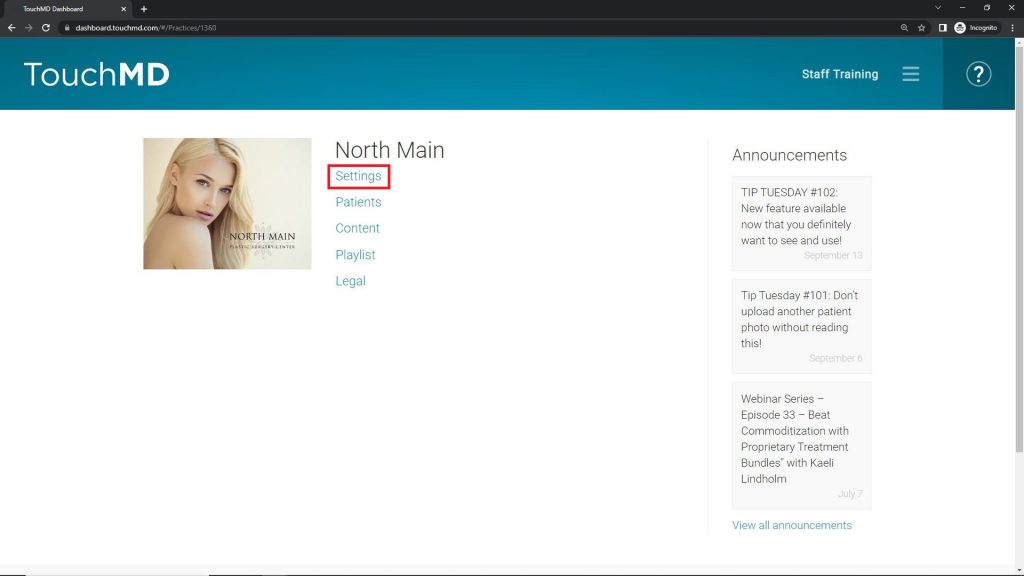
- Select “Settings”
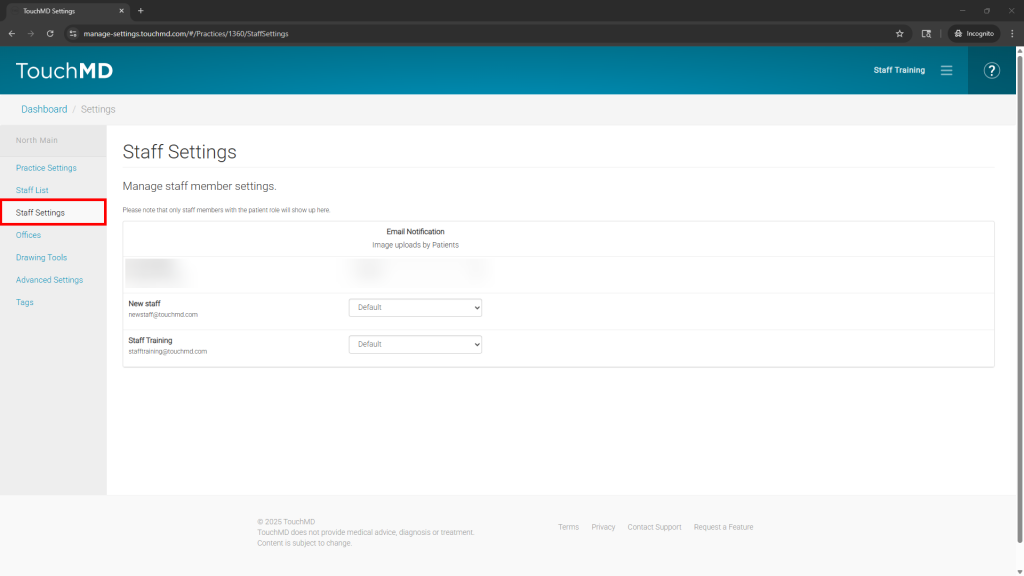
- Select “Staff Settings”
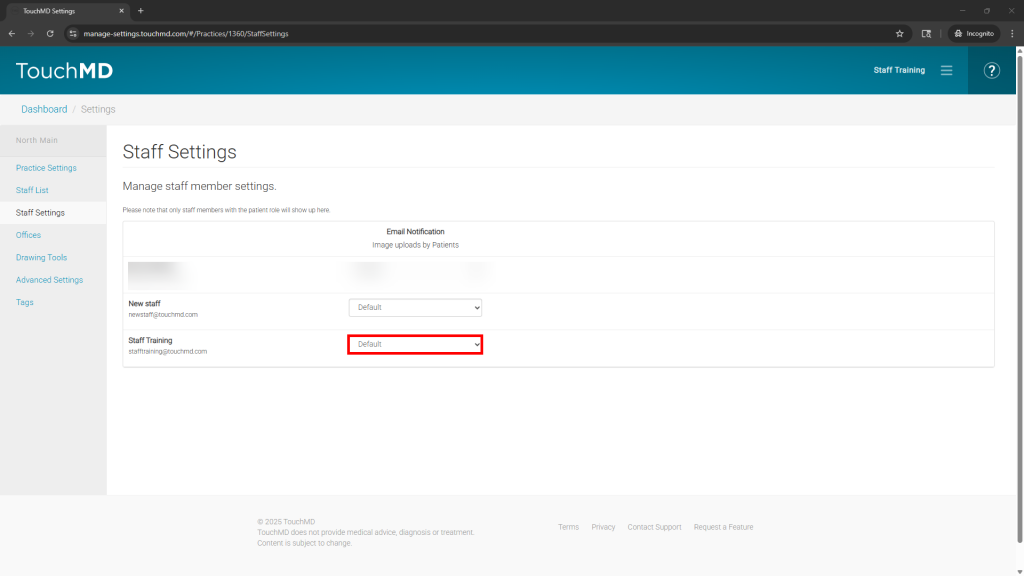
- Locate the desired staff user and select the drop-down menu. NOTE: Only users with the “Patient” role will show in this list.
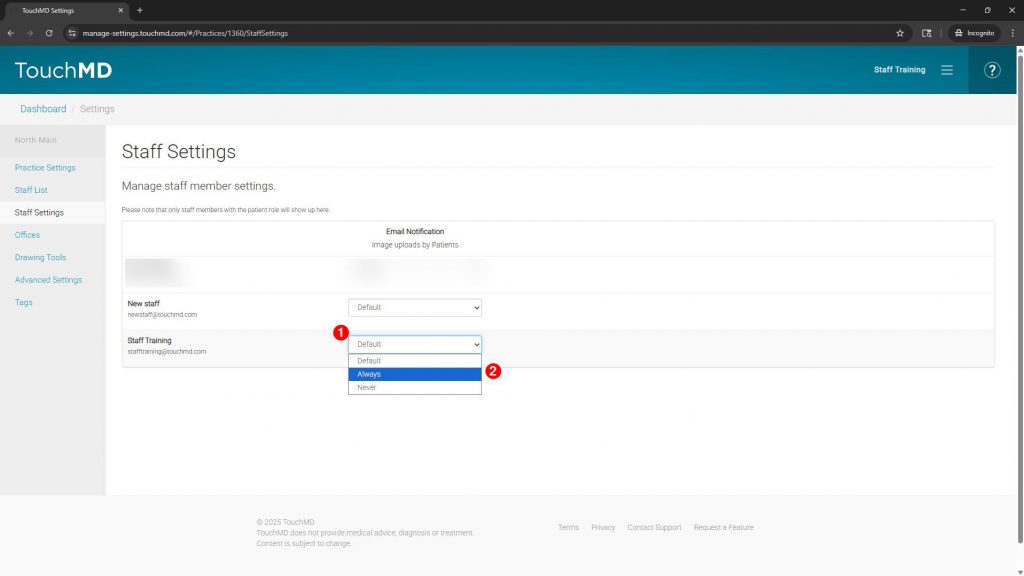
- Determine the desired Email Notification preferences:
-
-
- Default: Staff receives an email notification for all patient photo uploads if they have accessed the patient in the last 12 months or if no active staff have accessed the patient
- Always: Staff will receive an email notification for all patient photo uploads
- Never: Staff will never receive email notifications regarding patient photo uploads
-
-