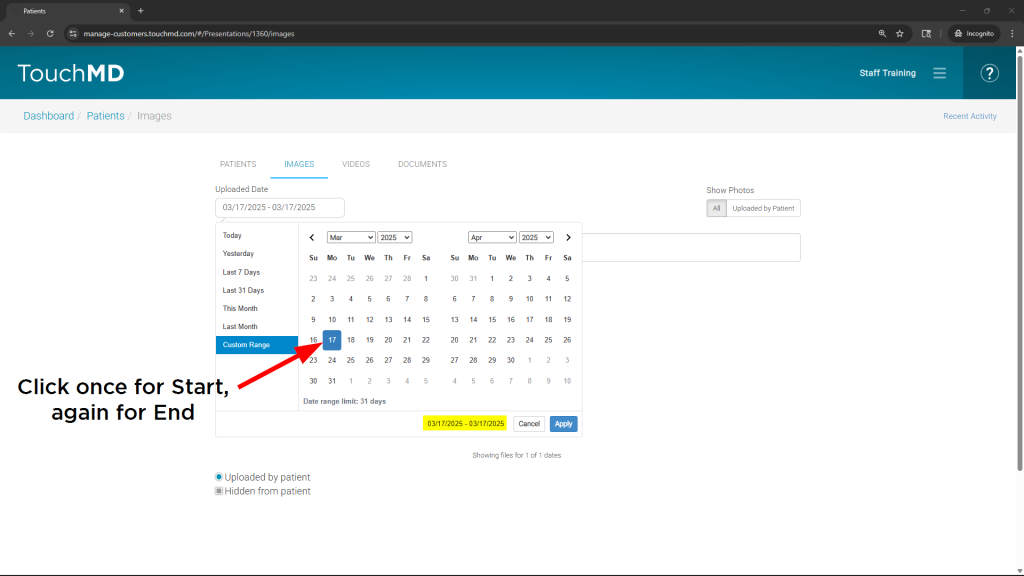
Quickly locating the right images in the TouchMD Dashboard starts with effective date filtering. This article explains how images can be filtered by date, reviews available date range options, and highlights how date selections are applied.
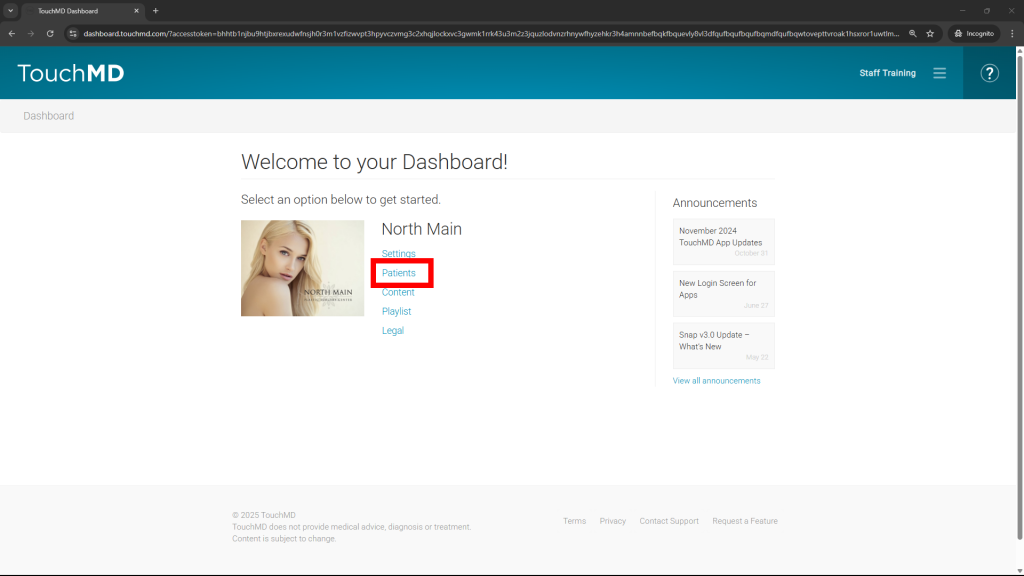
- Go to dashboard.touchmd.com
- Select “Patients”
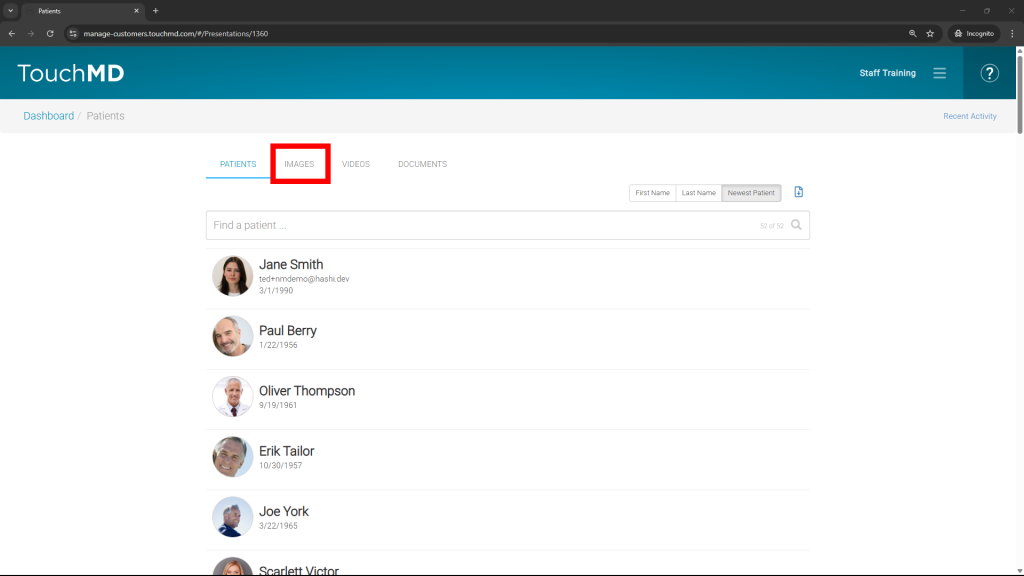
- Choose “Images”
- Select the date filter, the preferred date range from the calendar, and “Apply”
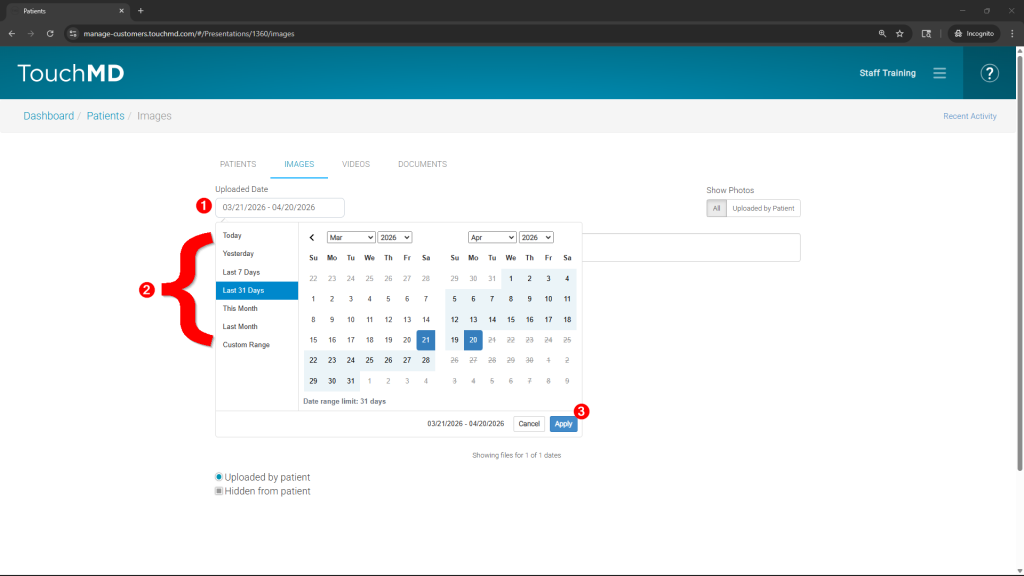
Options include:
- Today
- Yesterday
- Last 7 Days
- Last 31 Days
- This Month
- Last Month
- Custom Range
Custom Range Search Tips
- Custom Range allows selection of a single past date or a range of past dates. The range is limited to a maximum of 31 days.
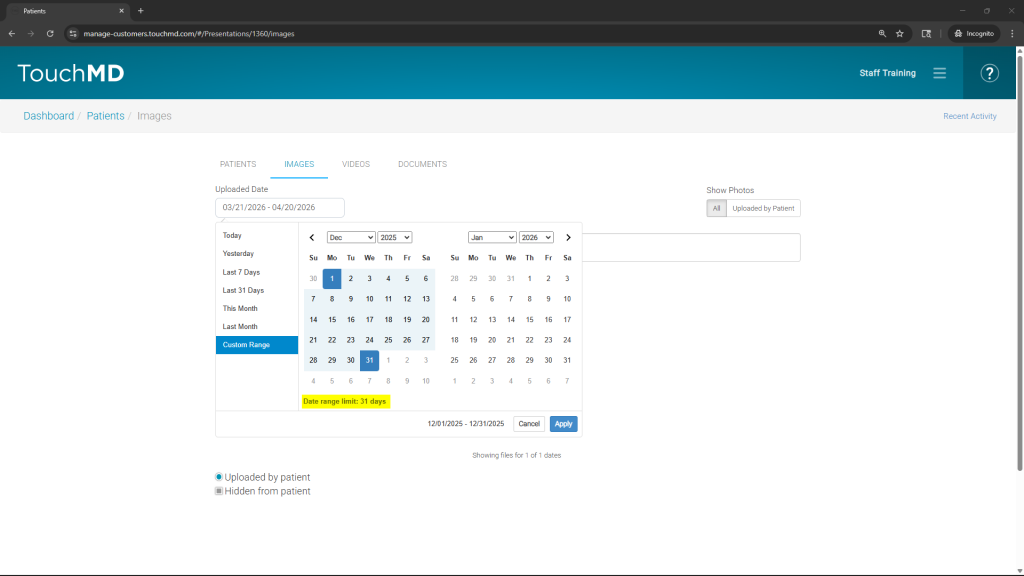
- Custom Range requires a start and end date selection. For a single‑date range, the same date must be selected twice on the calendar.